Upgrade Dell Laptop Memory Using Crucial Memory
We have a Dell 15 5559 full HD touch display laptop with 8GB memory. 8GB memory is perfect for common computer works such as software development, webpage viewing and daily home works. However, if we use virtual machines on the laptop, we realize more memory is better.
We introduced this memory before, it is compatible with our laptop. If you want to check what memory can work on your laptop, check Curcial’s website here to get advises.
Here is Crucial 16GB Kit (8GBx2) DDR3/DDR3L 1600 MT/S (PC3-12800) Unbuffered SODIMM 204-Pin Memory - CT2KIT102464BF160B
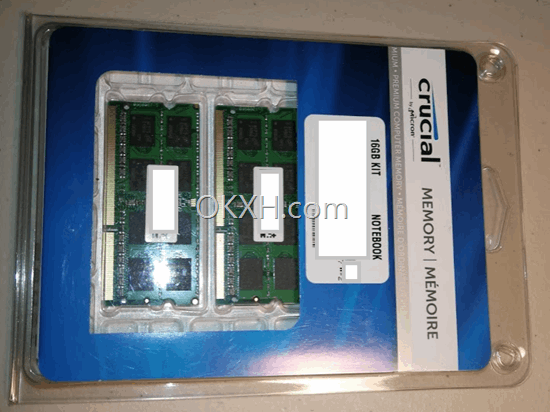
The regular price might be around $200, you can wait for its on sale, which might be only around $60 for a 6GB x 2.
How to install Crucial memory on Dell 15 laptop ?
Note: Do NOT do by yourself if you are not familiar with computer. Also, if you start to do the memory upgrading, you take your own risk, We are NOT responsible for any damage to your laptop and your memory and any your stuff.
First we need to find the place where the memory to be installed on the laptop. See the photo below, power off the laptop and remove battery, you must do it first!
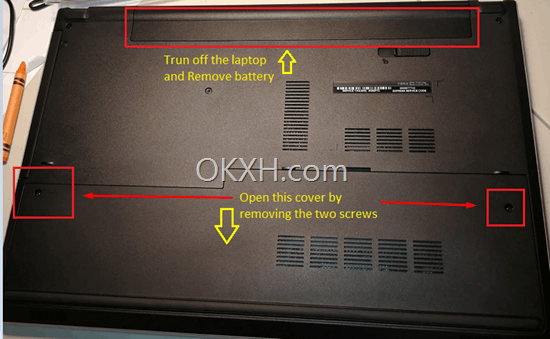
Then remove 2 screws so that you can open the bottom back cover.
Now you can see inside content, there are 2 pre-installed memories on the places which are marked by red rectangles below.
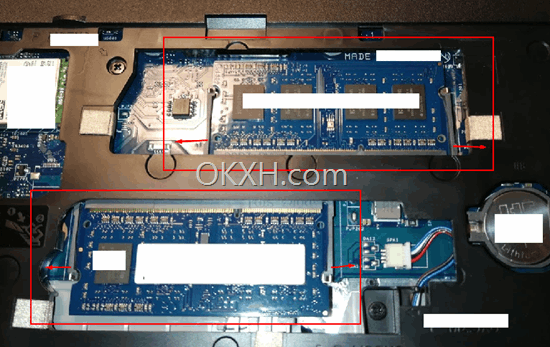
Now open 2 side clips by slightly loosing them to the directions which red arrows indicate in the photo above, so that you can take off pre-installed memories.
Install the new memory into the same place (slots) and clip them tightly. Close the back cover. Now you finished the memory upgrading.
Power on the laptop to check whether new memories work. If you get any errors, you can open the back cover and reinstall memory, or change back the original memory if you can not make the new memory work.
Where to Buy:
Search
Site QR Code